
Quick answer: GA4 for beginners comes down to five steps: create a property and a web data stream, install the Google tag on your site, confirm data in the Realtime report, then mark your important events, such as form submissions and WhatsApp clicks, as key events. Check Acquisition, Engagement and Events reports weekly. Our Performance Marketing course teaches GA4 and Tag Manager.
Google Analytics 4, or GA4, shows who visits your website, where they come from and what they do. For a business that wants enquiries, the most important question is how many visitors become leads. This beginner guide shows how to set GA4 up, what to track and which three reports answer that question.
How GA4 works: everything is an event
GA4 records every action as an event: a page view, a scroll, a click or a form submission. You choose which events matter and mark them as key events, which GA4 then counts as your conversions.
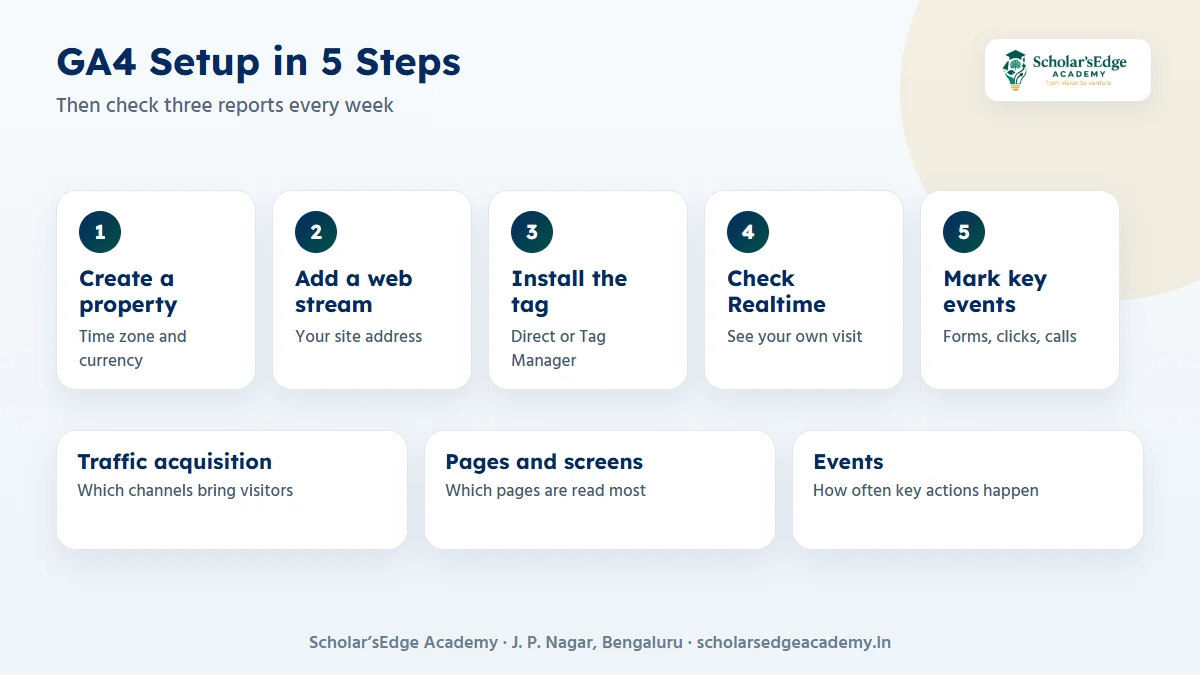
- Create a propertyIn Google Analytics, create a GA4 property for your website and choose your time zone and currency.
- Add a web data streamEnter your website address. GA4 gives you a measurement ID that starts with G-.
- Install the Google tagAdd the tag to every page, directly or through Google Tag Manager.
- Check the Realtime reportOpen your site in another tab and confirm your own visit appears.
- Mark key eventsIn Admin, open Events and mark the actions that matter, such as a form submission, as key events.
Google’s own Analytics Help Centre is the reference for current screens and wording.
The three reports to check every week
| Report | Where to find it | The question it answers |
|---|---|---|
| Traffic acquisition | Reports, Acquisition | Which channels bring visitors, such as search, social and direct? |
| Pages and screens | Reports, Engagement | Which pages do visitors read most? |
| Events | Reports, Engagement | How often do key actions, such as form submissions, happen? |
Terms every beginner should know
- Users and new users: how many different people came, and how many came for the first time.
- Sessions: a visit, which can include many page views.
- Engagement rate: the share of sessions that were engaged, meaning they lasted at least 10 seconds by default, had a key event or had two or more page views.
- Key event: an event you mark as important to your business.
What a training institute should track
For a local business, the actions that matter are form submissions, WhatsApp clicks, phone taps and brochure downloads. Track each one as an event, mark the ones that mean a real enquiry as key events, and compare them by page and by channel. That shows which pages and sources produce enquiries, not just visits.
A 15-minute weekly routine
- Open Traffic acquisition and note which channel brought the most visitors and the most key events.
- Open Pages and screens and list the three pages with the most views.
- Open Events and check that your key events still fire; a sudden zero means something broke.
- Write one sentence about what changed and one thing to try next week.
Common GA4 mistakes
- Counting every click as a key event. Mark only the actions that mean a real enquiry or sale.
- Not filtering your own visits. Your team’s traffic can inflate small sites, so exclude internal traffic.
- Reading data from the first few hours. Give GA4 a day to fill in standard reports.
- Never linking Search Console. Without it you cannot see the searches that bring visitors.
Check that every event fires once, on the right action, before you rely on the numbers. A button that counts twice makes a campaign look better than it is.
Connect GA4 to your ads and search data
Link GA4 to Google Search Console to see the searches that bring visitors, and to Google Ads to see which campaigns lead to key events. This is how marketers connect spending to results. See also Google Ads vs Meta Ads.
How our course covers GA4
The AI-Powered Performance Marketing course runs for 3 months at our J. P. Nagar centre: 3 hours a day, Monday to Friday, plus a Saturday campaign lab, with a weekend batch also available.
- You learn: Google Ads, Meta Ads, LinkedIn Ads, GA4, Tag Manager, Looker Studio, SEO and optimisation for AI search, and email, WhatsApp and CRM automation.
- Projects: an SEO audit, a Google and Meta campaign plan, a GA4 dashboard and a live campaign for a local business with a real budget.
- Who can join: any graduate, business owners, freelancers and marketing staff.
- Internship and fee: a 2-month internship is included, and the offer fee is ₹17,999 (regular ₹24,999).
Ready to try a class before you decide?Book a free demo class to see the syllabus, ask about fees and batches, and meet the team. Every course includes a 2-month internship, and classes run online and offline.Book on WhatsApp
Frequently asked questions
Is GA4 free?
Yes, standard Google Analytics 4 is free to use. Google also sells a paid version for very large businesses.
What is the difference between a key event and a conversion in GA4?
Google renamed conversions to key events in GA4. A key event is an event you mark as important to your business.
How long does GA4 take to show data?
The Realtime report shows visits within minutes. Standard reports can take up to a day to fill in.
Do I need Google Tag Manager to use GA4?
No, you can add the Google tag directly. Tag Manager makes it easier to add and change events without editing the website each time.
Can a beginner learn GA4 in the Performance Marketing course?
Yes. The course is open to any graduate and teaches GA4, Tag Manager and Looker Studio step by step, ending with a GA4 reporting dashboard project.
Not sure yet? Talk to us
Book a free demo class or ask for 1:1 guidance on WhatsApp at +91 99020 58603, or use the form on our contact page. You can also compare all our courses. Scholar’sEdge Academy is at Building No. 19, 25/1, 9th Cross Road, 2nd Phase, J. P. Nagar, Bengaluru, Karnataka 560078. Read how we write and check our articles in our editorial policy.
